# Overview
Convertedin is a marketing operating system for e-commerce, which utilizes data and shoppers' insights to create personalized multi-channel marketing that boosts customer engagement and maximizes ROI.
### Get Access to Convertedin SDK
You need to [Request Demo](https://converted.in/request-demo)[ ](https://converted.in/request-demo)to get your integration credentials
### Install the SDK
{% content-ref url="/pages/-M7X4b9beDDua9CMjOo9" %}
[Getting started with Android SDK](/android/getting-started)
{% endcontent-ref %}
{% content-ref url="/pages/-M7YCOAYc17t0Iqaxz2d" %}
[Getting started with the iOS SDK](/ios/getting-started)
{% endcontent-ref %}
# Integrating Firebase Cloud Messaging for Push Notifications
This guide will walk you through the steps to integrate Firebase Cloud Messaging (FCM) with your application to enable push notifications. Follow these steps to configure your settings and upload your private key.
### Prerequisites
Before you begin, ensure that you have administrative access to your Firebase console and the application dashboard.
### Step 1: Obtain Your Private Key from Firebase
1. **Login to Firebase Console**: Visit the [Firebase console](https://console.firebase.google.com/) and log in with your credentials.
2. **Navigate to Project Settings**: Click on the gear icon (⚙️) next to the Project Overview on the left sidebar to open the settings menu.
3. **Access Service Accounts**: In the settings menu, select the **Service Accounts** tab.
4. **Generate New Private Key**: Click on the **Generate New Private Key** button at the bottom of the page. Confirm the prompt to download your JSON file, which contains your private key. Keep this file secure, as it provides API access to your Firebase services.
### Step 2: Upload Your Private Key to Your Dashboard
1. **Log Into Your Dashboard**: Open your dashboard at Convertedin.
2. **Open Settings**: Click on the **Settings** icon located at the bottom left of the sidebar of your dashboard and select **Configurations** to open the configuration page..
3. **Access Push Notifications**: Click on the **Push Notifications** tab to access the push notification configurations.
4. **Upload Private Key**:
* Locate the input field labeled **Server Token**.
* Click on the field to upload the JSON file you downloaded from Firebase.
5. **Save Your Configuration**: After uploading the JSON file, click the **Save** button to update your settings.
### Confirmation
Once you have uploaded your JSON file and saved the configuration, your application will be set to receive and manage push notifications via Firebase Cloud Messaging.
### Need Help?
If you encounter any issues or have questions during the setup, please refer to the [Firebase documentation](https://firebase.google.com/docs) or contact our support team for assistance.
# Getting started with Android SDK
Convertedin SDK for events and push notifications is a powerful tool for developers to create engaging and personalized experiences for your app users. With this SDK, developers can easily track user behavior and send targeted push notifications to drive engagement and increase retention. Push notifications allow developers to reach users even when they're not actively using the app, keeping them up to date with the latest news, updates, and promotions. By leveraging Convertedin SDK for events and push notifications, developers can create more meaningful and impactful experiences for their users, leading to higher engagement, increased user satisfaction, and ultimately, greater success for their app.
***
## SDK Integration
The Android SDK is compatible with apps supporting Android API level 21 and above. Apps can be written using Kotlin or Java.
### **Using Github Library**
1. Downloading and importing the SDK
2. Adding the dependency to your Gradle files.
#### Adding dependency to your Gradle files.
Once you acquire a username and password from Convertedin, you can access the repository that has the SDK. Add the following snippet to your root `build.gradle` file and you will be able to resolve the library.
```kotlin
allprojects {
repositories {
maven { url 'https://jitpack.io' }
}
}
```
Then, in the `build.gradle` file for the project for which you would like to include the SDK, add:
```kotlin
dependencies {
implementation 'com.github.convertedin:android-pixel-sdk:1.4.4'
}
```
### **Manual Download**
**Step 1: Downloading and importing the SDK.**
Download the SDK from Github and follow the steps
1. Open your Android Studio project.
2. Click on the "File" menu and select "New" > "Import Module".
3. In the "Import Module" dialog box, Browse and select the module file you want to import, then click "Finish".
4. In the "Project" view, you should now see the imported module as a sub-project within your main project.
**Step 2: Adding the dependency to your Gradle files.**
{% tabs %}
{% tab title="KOTLIN" %}
```kotlin
dependencies {
implementation project(path: ':PixelSDK')
}
```
{% endtab %}
{% endtabs %}
## Getting Started
#### Step 1: Initialize the SDK with your Pixel Id and store url.
Initialize the SDK using this function
{% tabs %}
{% tab title="KOTLIN" %}
```kotlin
ConvertedInSdk().initialize(this,"Your pixel id", "Your store url")
//you can get pixel id and store id from the dashboard
```
{% endtab %}
{% endtabs %}
#### Step 2: Authenticate user by Sending user data.
The "Identify User" API in the Convertedin SDK allows developers to track and identify users across different devices and sessions. When a user logs in or creates an account, the developer can use the Identify User API to associate a unique identifier with that user.
This identifier can then be used to track the user's actions and behavior throughout their usage of the application. For example, if a user makes a purchase or completes a form, the Identify User API can associate that action with the user's unique identifier.
By using the Identify User API, developers can gain valuable insights into their user's behavior, preferences, and interests. This information can then be used to improve the user experience, personalize content, and increase user engagement and retention.
Additionally, the Identify User API can also be used to implement security measures such as authentication and authorization, by verifying that a user is who they claim to be and granting them access to certain features or content.
Overall, the Identify User API is a powerful tool for developers to understand and optimize their user's experience, as well as provide a more secure and personalized platform for their users.
\
Identify user using this function
{% tabs %}
{% tab title="KOTLIN" %}
//This function will be removed soon, use 'register()', login() or 'setUserData()' instead.
ConvertedInSdk().identifyUser(“email”,”phone”,”countryCode”)
//You can enter either email or phone number and country code
{% endtab %}
{% endtabs %}
*You can enter either email or phone number and country code.*
This function is typically triggered when a user signs up for an account or registers their information. By tracking Register events, developers can gain insights into user acquisition and onboarding processes and optimize their registration flow accordingly.
```kotlin
/**
* This function is typically triggered when a user registers for the app.
* @param email or phone is required
*/
ConvertedInSdk().register("email")
ConvertedInSdk().register("phone", "countryCode")
//where eventName is "Register"
```
This function is typically triggered when a user login into your app. By tracking login action, developers can gain insights into user acquisition and onboarding processes and optimize their login flow accordingly.
```kotlin
/**
* This function is typically triggered when a user login into the the app.
* @param email or phone is required
*/
ConvertedInSdk().login("email")
ConvertedInSdk().login("phone", "countryCode")
```
This function is commonly used to set the current customer data, for example email or phone and should be used in the first screen of the app.
```kotlin
/**
* TThis function is typically triggered in the first screen of the app when user email or phone is available.
* @param email or phone is required
*/
ConvertedInSdk().setCustomerData("email")
ConvertedInSdk().setCustomerData("phone", "countryCode")
```
#### Step 3: Track user events and actions through your app.
Tracking user events and actions through your app is an essential component of app development and user analysis. By monitoring user actions and events, developers can gain valuable insights into how users interact with their app, what features they use most often, and where they encounter problems or difficulties.
To track user events and actions through your app, you can Convertedin SDK. it will allow you to track user behavior in real-time and provide detailed reports and analytics on user engagement, retention, and conversion.
Typically, the process of tracking user events and actions involves the following steps:
1. Define the events you want to track: Before you can start tracking user events, you need to identify the specific actions or behaviors that you want to monitor. For example, you might want to track when a user completes a registration form or makes a purchase.
2. Instrument your app with tracking code: Once you have identified the events you want to track, you need to add tracking code to your app to collect data on user behavior. This code can be added to specific screens or features of your app to track when users perform certain actions.
3. Send data to our SDK: Once the tracking code is implemented, the data on user events and actions is sent to us, where it is stored and analyzed. From there, you can generate reports and dashboards to visualize user behavior and identify areas for improvement.
By tracking user events and actions, developers can make data-driven decisions and improve the user experience of their app. Whether you're looking to optimize conversion rates, improve user engagement, or identify areas for improvement, event tracking can provide valuable insights into how users interact with your app.
To add event, you can use this function
{% tabs %}
{% tab title="KOTLIN" %}
ConvertedInSdk().addEvent("event name","Currency","Total","products")
//where products is an arrayList of EventContent("id","quantity","name")
{% endtab %}
{% endtabs %}
There are several predefined events you can use
The ViewContent event is a type of event that is commonly tracked to monitor user behavior on your app. This event is typically triggered when a user views a specific piece of content, such as a product, article, or video. By tracking ViewContent events, developers can gain insights into what content users are engaging with most and optimize their content strategy accordingly. The ViewContent event is one of many events that can be tracked by event tracking platforms, and is an important component of user analysis and app optimization.
{% tabs %}
{% tab title="KOTLIN" %}
/**
  * @param currency is required
  * @param total is required
  * @param products(arraylist of EventContent) is required
  * For each product in the products(id & quantity) are required
  */
ConvertedInSdk().viewContentEvent("Currency","Total","products")
//where eventName is "ViewContent"
{% endtab %}
{% endtabs %}
The PageView event is a type of event that is commonly tracked to monitor user behavior on your app. This event is triggered when a user views a page or screen within the app. By tracking PageView events, developers can gain insights into how users navigate through their app and optimize the user experience accordingly. The PageView event is one of the most basic and commonly tracked events in event tracking, and is an important component of user analysis and app optimization.
{% tabs %}
{% tab title="KOTLIN" %}
```kotlin
ConvertedInSdk().pageViewEvent()
//where eventName is "PageView"
```
{% endtab %}
{% endtabs %}
The AddToCart event is a type of event that is commonly tracked to monitor user behavior on an e-commerce app. This event is triggered when a user adds a product to their shopping cart. By tracking AddToCart events, developers can gain insights into which products are most popular and optimize their product offering and pricing accordingly. The AddToCart event is often paired with other e-commerce events such as Purchase or Checkout events, and is an important component of user analysis and e-commerce optimization.
{% tabs %}
{% tab title="KOTLIN" %}
```kotlin
/**
* @param currency is required
* @param total is required
* @param products is required, for each product `id` and `quantity` are required
*/
ConvertedInSdk().addToCartEvent("Currency","Total","products")
//where eventName is "AddToCart"
```
{% endtab %}
{% endtabs %}
The InitiateCheckout event is a type of event that is commonly tracked to monitor user behavior during the checkout process on an e-commerce app. This event is triggered when a user begins the process of checking out and entering their payment and shipping information. By tracking InitiateCheckout events, developers can gain insights into how users interact with the checkout process and identify areas for improvement to increase conversion rates. The InitiateCheckout event is often paired with other e-commerce events such as AddToCart or Purchase events, and is an important component of user analysis and e-commerce optimization.
{% tabs %}
{% tab title="KOTLIN" %}
 /**
  * @param currency is required
  * @param total is required
  * @param products is required, for each product `id` and `quantity` are required
  */
ConvertedInSdk().initiateCheckoutEvent("Currency","Total","products")
//where eventName is "InitiateCheckout"
{% endtab %}
{% endtabs %}
\
The Purchase event is a type of event that is commonly tracked to monitor user behavior on an e-commerce app. This event is triggered when a user completes a purchase and successfully makes a payment for a product or service. By tracking Purchase events, developers can gain insights into which products are most popular and identify patterns in user behavior to optimize the checkout process and increase sales. The Purchase event is often paired with other e-commerce events such as AddToCart or InitiateCheckout events, and is an important component of user analysis and e-commerce optimization.
{% tabs %}
{% tab title="KOTLIN" %}
```kotlin
/**
* @param currency is required
* @param total is required
* @param products is required, is required, for each product `id` and `quantity` are required
* @param orderId is required
*/
ConvertedInSdk().purchaseEvent("Currency","Total","products, orderId")
//where eventName is "Purchase"
```
{% endtab %}
{% endtabs %}
#### Step 4: Configre Push Notifications.
To use Convertedin SDK’s push notifications, you need to integrate with Firebase notifications
Integrating your Android app with Firebase Notifications allows you to send push notifications to your app users. Here are the steps to integrate your Android app to Firebase Notifications:
1. Create a Firebase project: If you haven't already, create a Firebase project in the Firebase console and add your Android app to it.
2. Add the Firebase SDK to your app: Add the Firebase SDK to your app by following the instructions provided by Firebase. This involves adding the necessary dependencies to your app's Gradle files and downloading a google-services.json file from the Firebase console and adding it to your app.
3. Set up Firebase Cloud Messaging: Firebase Cloud Messaging (FCM) is the service that powers Firebase Notifications. Follow the instructions provided by Firebase to set up FCM for your Android app.
4. Add Firebase messaging to your app: To receive Firebase Notifications in your app, you need to add Firebase Messaging to your app. This involves creating a FirebaseMessagingService and registering it in your app's AndroidManifest.xml file.
5. Handle incoming messages: Once you have set up Firebase Messaging in your app, you can receive incoming messages in your FirebaseMessagingService. You can then handle the message data and display a notification to the user.
6. Test your integration: Finally, test your Firebase Notifications integration by sending a test notification from the Firebase console or using a third-party tool like Postman.
By following these steps, you can integrate your Android app with Firebase Notifications and start sending push notifications to your app users.
**Step 5: Save Device Token**
After Integrating with firebase successfully, call this function on the SDK to send the firebase token to start getting notifications from your dashboard.
{% tabs %}
{% tab title="KOTLIN" %}
```kotlin
ConvertedInSdk().saveDeviceToken("token")
//where token is firebase token
```
{% endtab %}
{% endtabs %}
`⚠️ Important Note: Each Time firebase token is updated you must call saveDeviceToken function to save the new firebase token`
**Step 6: Pass Campaign ID**
This event is typically triggered when a user clicks on a push notification, and should pass the received campaign id to the function `onPushNotificationClicked()`, and you can find the campaign id in the payload of the push notification \["campaign\_id"] with a string value.
{% tabs %}
{% tab title="KOTLIN" %}
/**
 * @param campaignId is required
 */
ConvertedInSdk().onPushNotificationClicked(campaignId)
{% endtab %}
{% endtabs %}
```kotlin
/**
* Inside the `onMessageReceived(message: RemoteMessage)` method, when the app is in the foreground,
* you can receive the `campaign_id` as follows:
*/
val campaignId = message.data["campaign_id"]
/**
* If the app is in the background, you can receive the `campaign_id` in your launcher activity as follows:
*/
val campaignIdBackground = intent.extras?.getString("campaign_id")
campaignIdBackground?.let {
ConvertedInSdk().onPushNotificationClicked(it)
}
```
### **Logging out**
If user logged out or you want user to stop getting notifications from our side, you can call this function
{% tabs %}
{% tab title="KOTLIN" %}
```kotlin
ConvertedInSdk().deleteDeviceToken()
```
{% endtab %}
{% endtabs %}
#### proguard-rules
```
# Keep all classes and members in the convertedin.pixel.pixelsdk package
-keep class convertedin.pixel.pixelsdk.** { *; }
# Prevent proguard from stripping interface information from TypeAdapter, TypeAdapterFactory,
# JsonSerializer, JsonDeserializer instances (so they can be used in @JsonAdapter)
-keep class * extends com.google.gson.TypeAdapter
-keep class * implements com.google.gson.TypeAdapterFactory
-keep class * implements com.google.gson.JsonSerializer
-keep class * implements com.google.gson.JsonDeserializer
-keepattributes Signature
-keepattributes *Annotation*
# Prevent R8 from leaving Data object members always null
-keepclassmembers,allowobfuscation class * {
@com.google.gson.annotations.SerializedName ;
}
# Retain generic signatures of TypeToken and its subclasses with R8 version 3.0 and higher.
-keep,allowobfuscation,allowshrinking class com.google.gson.reflect.TypeToken
-keep,allowobfuscation,allowshrinking class * extends com.google.gson.reflect.TypeToken
-keep,allowobfuscation,allowshrinking class * implements java.lang.reflect.Type
-keep class com.google.common.reflect.TypeToken { *; }
# Gson specific classes
-dontwarn sun.misc.**
-keep class com.google.gson.stream.** { *; }
-keep class java.util.HashMap { *; }
# Keep generic signature of Call, Response (R8 full mode strips signatures from non-kept items).
-keep,allowobfuscation,allowshrinking interface retrofit2.Call
-keep,allowobfuscation,allowshrinking class retrofit2.Response
# Keep classes and members that are used by RxJava
-keep class io.reactivex.** { *; }
-keep class * extends io.reactivex.** { *; }
-keep class * implements io.reactivex.** { *; }
# Keep methods that are used by RxJava subscribers
-keepclassmembers class * {
void onSubscribe(io.reactivex.disposables.Disposable);
void onNext(*);
void onError(java.lang.Throwable);
void onComplete();
}
```
# Getting started with the iOS SDK
Convertedin SDK for events and push notifications is a powerful tool for developers to create engaging and personalized experiences for your app users. With this SDK, developers can easily track user behavior and send targeted push notifications to drive engagement and increase retention. Push notifications allow developers to reach users even when they're not actively using the app, keeping them up to date with the latest news, updates, and promotions. By leveraging Convertedin SDK for events and push notifications, developers can create more meaningful and impactful experiences for their users, leading to higher engagement, increased user satisfaction, and ultimately, greater success for their app.
***
## Requirements
The Convertedin iOS SDK requires Xcode 10.1 or later and is compatible with apps targeting iOS 13 or above.
***
## SDK Integration
You can easily integrate Convertedin Mobile SDK into your projects using **one** of the following methods:
#### **Method 1:** **Using Swift Package Manager**
To integrate ConvertedinMobileSDK into your iOS project using Swift Package Manager, follow these simple steps:
* Open Your Project: In Xcode
* open your project workspace or project file where you want to add the framework.
* Go to the "File" menu.
* Select "Swift Packages."
* Choose "Add Package Dependency..."
* Enter the Repository URL:
```swift
https://github.com/iOS-convertedin-eslamali/iOS_ConvertedinMobileSDK.git
```
* Click "Next & Finish"
* Build and Run:
* Xcode will automatically resolve and fetch the framework package.
* Build and run your project to start using ConvertedinMobileSDK in your application
And that's it! You've successfully integrated ConvertedinMobileSDK into your project using Swift Package Manager. 🚀
***
**Method 2:**\
**Cocoapods**
To effortlessly integrate ConvertedinMobileSDK into your iOS project using CocoaPods, follow these straightforward steps:\
First you need to install cocaopods, Here's a comprehensive guide on how to install cocoapods [Cocoapods documentation ](https://guides.cocoapods.org/using/getting-started.html)
After installing the Cocoapods successfully
* Open the Podfile in a text editor and add the following line.
```swift
pod 'ConvertedinMobileSDK'
```
* Run the following command to install the framework and its dependencies:
```swift
pod install
```
You can now import and use ConvertedinMobileSDK in your iOS project. Xcode will handle the linking and configuration.\
And that's it! You've successfully integrated ConvertedinMobileSDK into your project using CocoaPods. 🚀
***
## Getting Started
### **Step 1:** **Convertedin Mobile SDK Configuration**
* Open your app's AppDelegate.swift file.
* Import ConvertedinMobileSDK at the top of AppDelegate.swift using the following line of code
```swift
import ConvertedinMobileSDK
```
* In the application(\_:didFinishLaunchingWithOptions:) method, integrate our framework by adding the following code:
```swift
ConvertedinMobileSDK.configure(pixelId: "Pixel_id", storeUrl: "store@test.com")
```
Make sure to set the pixelId and storeUrl as the appropriate initialization parameters for your use case. These parameters are crucial for configuring the SDK with your desired settings.
***
### **Step 2:** **Authenticate user by Sending user data**
* The "Identify User" API in the ConvertedinMobileSDK allows developers to track and identify users across different devices and sessions. When a user logs in or creates an account, the developer can use the Identify User API to associate a unique identifier with that user.
* This identifier can then be used to track the user's actions and behavior throughout their usage of the application. For example, if a user makes a purchase or completes a form, the Identify User API can associate that action with the user's unique identifier.
* By using the Identify User API, developers can gain valuable insights into their user's behavior, preferences, and interests. This information can then be used to improve the user experience, personalize content, and increase user engagement and retention.
* Additionally, the Identify User API can also be used to implement security measures such as authentication and authorization, by verifying that a user is who they claim to be and granting them access to certain features or content.
* Overall, the Identify User API is a powerful tool for developers to understand and optimize their user's experience, as well as provide a more secure and personalized platform for their users.
> This function is **currently** **deprecated and will be removed in future versions**. Please use the following methods instead:
>
> * `Login()`: Use this for logging users into the system.
> * `Register()`: Use this for new user registrations.
> * `SetUserData()`: Use this to set or update user information.
// This function currently deprecated and will be removed in future versions.
ConvertedinMobileSDK.identifyUser(email: "test@converted.in", countryCode: nil, phone: nil)
In this code snippet, you have the option to identify the user using either their email or phone number. Replace "" with the user's email address and provide the appropriate country code if you are identifying the user by phone number.
***
### Register Action
**Overview**
This function is typically triggered when a user signs up for an account or registers their information. By tracking Register events, developers can gain insights into user acquisition and onboarding processes and optimize their registration flow accordingly.
#### Parameters
* **`email`**: The user's email address (required if registering by email).
* **`phone`**: The user's phone number (required if registering by phone).
**Example Usage**
```
ConvertedinMobileSDK.register(email: "test@converted.in")
```
```
ConvertedinMobileSDK.register(phone: "1234567890", countryCode: "+20")
```
**Note:** Please replace the example email or phone number with real user data to successfully register the user.
***
### Login Action
**Overview**
This function is typically triggered when a user login into your app. By tracking login action, developers can gain insights into user acquisition and onboarding processes and optimize their login flow accordingly.
#### Parameters
* **`email`**: The user's email address (required if logging by email).
* **`phone`**: The user's phone number (required if logging by phone).
**Example Usage**
```
ConvertedinMobileSDK.login(email: "test@converted.in")
```
```
ConvertedinMobileSDK.login(phone: "1234567890", countryCode: "+20")
```
**Note:** Please replace the example email or phone number with real user data to successfully login the user.
### SerUserData Action
**Overview**
This function is commonly used to set the current customer data, for example email or phone and should be used in the first screen of the app.
#### Parameters
* **`email`**: The user's email address (required if seting user email).
* **`phone`**: The user's phone number (required if setting user phone).
**Example Usage**
```
ConvertedinMobileSDK.setUserData(phone: "1234567890", countryCode: "+20")
```
```
ConvertedinMobileSDK.setUserData(email: "test@converted.in")
```
**Note:** Please replace the example email or phone number with real user data to successfully register the user.
***
### **Step 3:** **Track user events and actions through your app.**
ConvertedinMobileSDK offers a set of predefined events that are commonly used in most e-commerce applications. These predefined events include:
* `ViewContent`: To track when a user views content, such as a product.
* `PageView`: To track when a user views a specific page.
* `AddToCart`: To track when a user adds an item to their cart.
* `InitiateCheckout`: To track when a user initiates the checkout process.
* `Purchase`: To track when a user completes a purchase.
You can use these predefined events to gather valuable data and insights about user interactions in your application effortlessly.
If the predefined events do not fully meet your tracking needs, don't worry! **ConvertedinMobileSDK** allows you to create your own custom events using unique identifiers. This flexibility enables you to tailor event tracking to the specific actions and interactions that matter most to your application.
By leveraging both predefined and custom events, you can gain a comprehensive understanding of user behavior and make data-driven decisions to enhance your e-commerce application.
you can use a predefined events with the following code:
```swift
ConvertedinMobileSDK.pageViewEvent()
ConvertedinMobileSDK.viewContentEvent()
ConvertedinMobileSDK.AddToCartEvent()
ConvertedinMobileSDK.InitiateCheckoutEvent()
ConvertedinMobileSDK.PurchaseEvent()
```
or you can create your custom events using the following code:
```swift
ConvertedinMobileSDK.addEvent()
```
* Please, be mindful of methods that require parameters related to currency, total price, and a set of products. These parameters are crucial for accurate event tracking and analytics in your e-commerce application.
***
### **Step 4:** **Configure Push Notifications**
To enable notifications in this framework, you need to integrate it with Google Firebase services. Firebase provides a robust platform for handling notifications, making it easy to send and receive messages in your application.
1. **Create a Firebase Project:**
* If you haven't already, create a Firebase project in the [Firebase console](https://console.firebase.google.com).
* Add your iOS app to the Firebase project by following the steps in the [Firebase console](https://console.firebase.google.com).
2. **Add the Firebase SDK to Your iOS App Using Swift Package Manager**
* Open Your Project: In Xcode
* open your project workspace or project file where you want to add the framework.
* Go to the "File" menu.
* Select "Swift Packages."
* Choose "Add Package Dependency..."
* Enter the Repository URL:
```
https://github.com/firebase/firebase-ios-sdk.
```
* Select the following Firebase packages: (`FirebaseCore, FirebaseMessaging )`
* Click `Add Package`.
3. **Configure Firebase in Your App:**
* Download the `GoogleService-Info.plist` file from the Firebase console.
* Add the `GoogleService-Info.plist` file to your Xcode project by dragging it into the project navigator.
4. **Open your `AppDelegate.swift` and configure Firebase by adding the following code:**
* Open your app's AppDelegate.swift file.
* Import Firebase at the top of AppDelegate.swift using the following line of code
```swift
import Firebase
```
* In the application(\_:didFinishLaunchingWithOptions:) method, integrate our framework by adding the following code:
```swift
FirebaseApp.configure()
```
***
### **Step 5:** **Save Device Token**
* After Setup the Push Notification successfully, Implement the didReceiveRegistrationToken method in your `AppDelegate.swift` file to receive the FCM device token. This method is called when a new token is generated or an existing token is updated, with the following code
```swift
func messaging(_ messaging: Messaging, didReceiveRegistrationToken fcmToken: String?) {
if let fcmToken = fcmToken {
ConvertedinMobileSDK.setFcmToken(token: fcmToken )
}
}
```
***
### **Step 6:** **Pass** Campaign ID
* When a user clicks on a push notification, you need to pass the campaign ID to the SDK's `onPushNotificationClicked()`
* function. The campaign ID can be found in the payload of the push notification, typically under the key `"campaign_id"`.
Here's how to implement this:
1. **Retrieve the Campaign ID**: In the `userNotificationCenter(_:didReceive:withCompletionHandler:)`method, access the `userInfo` dictionary from the notification response.
2. **Pass the Campaign ID**: If the campaign ID exists in the `userInfo`, pass it to `onPushNotificationClicked()`.
```swift
func userNotificationCenter(_ center: UNUserNotificationCenter,
didReceive response: UNNotificationResponse,
withCompletionHandler completionHandler: @escaping () -> Void) {
let userInfo = response.notification.request.content.userInfo
if let campaingId = userInfo["campaign_id"] as? String {
ConvertedinMobileSDK.onPushNotificationClicked(campaignId: campaingId)
}
completionHandler()
}
```
***
### **Logging Out or Notification Cessation**
* If you want to stop geting our notification or when the user logout, call our ConvertedinMobileSDK's deleteDeviceToken method to unregister the device for notifications. This ensures that the user no longer receives notifications from your app.
```swift
ConvertedinMobileSDK.deleteDeviceToken()
```
***
## Integrating Firebase for In-App Messages
**step 1: Integrate with Firebase via Swift Package Manage**
To enable Firebase In-App Messages in your application, it is recommended to install Firebase via a swift package manager. Follow the steps below to seamlessly integrate Firebase and create a new campaign with an in-app message:
* Open Your Project: In Xcode
* open your project workspace or project file where you want to add the framework.
* Go to the "File" menu.
* Select "Swift Packages."
* Choose "Add Package Dependency"
* Enter the Repository URL:
```
https://github.com/firebase/firebase-ios-sdk.git
```
**step 2: Import Firebase in `AppDelegate` File and Configure**
```swift
import Firebase
```
Inside the `application(_:didFinishLaunchingWithOptions:)` method, add the following code to configure Firebase:
#### Step 3: Create a New In-App Message Campaign and Customize Style
Now that you have integrated Firebase In-App Messaging, you can create a new in-app message campaign and customize the style to deliver a personalized experience to your users.
* Navigate to the [Firebase Console](https://console.firebase.google.com/).
* Select your project.
* In the left menu, click on "In-App Messaging."
* Click on the "New Campaign" button.
* Follow the on-screen instructions to set up your campaign, including targeting options, triggers, and scheduling.
Congratulations! By diligently following the steps outlined above, you have successfully integrated Firebase In-App Messaging into your iOS app. Your users are now ready to receive targeted and visually appealing in-app messages.
### License
This project is licensed under the MIT License - see the [LICENSE](https://github.com/iOS-convertedin-eslamali/iOS_ConvertedinMobileSDK/blob/main/LICENSE) file for details.
{% hint style="info" %}
in the Feedback rate \
the number 1: mean very bad rate\
the number 5: mean Excellent rate
{% endhint %}
# Getting Started
The only prerequisite is that you should have the `WooCommerce` plugin pre-installed on your WordPress website
You may get started from one of the following paths
## 1. Creating an account
1. Navigate to [app.converted.in](https://app.converted.in/register)
2. Fill the form and verify your mail
3. Navigate to the onboarding tab and select `WooCommerce` as your datasource
4. enter your domain, and click proceed
5. You will be redirected to the plugin installation inside your store or navigate to
6. follow the following steps in [Plugin installation steps](/woocommerce-plugin/plugin-installation-steps)
## 2. If you installed the plugin without having an account
6\. follow the steps in [Plugin installation steps](/woocommerce-plugin/plugin-installation-steps)
# Plugin installation steps
Here is how to install our WordPress Plugin
1. Login to your WordPress dashboard
2. Open plugins tab > add new > search for convertedin (or Install the plugin from [wordpress.org](https://wordpress.org/plugins/convertedin-ai-automation-for-woocommerce/)).
4\. After installing the plugin successfully you'll be seeing the following screen

Upon clicking `confirm and continue` the plugin will create an account on Convertedin platform using your WordPress user email or the email you chose. if you already have an account with the email you chose your store will be added to that email and your datasource is successfully added
#### You can always login to your account using the WordPress Plugin
1. Navigate to Convertedin tab in your WordPress Dashboard
2. Click `Login to Convertedin`
# Getting Started
Connect shopify store with Convertedin.
You can add your store by installing Convertedin app from Shopify store.
* Or, you can add your store from Convertedin dashboard.
This image illustrates how Convertedin works.

## Connect through dashboard
1. Registration
After completing the [registeration](https://app.converted.in) step you will be redirected to Your account dashboard to complete onboarding.
1. Add data source
The first step is adding data source. Choose `shopify` then you will be redirected to another page, add your shopify store URL and click `proceed`.
1. Authorization
After clicking proceed, you will be redirected to shoify to give convertedin permissions to get your store info that we need, after that you will be redirected back to Convertedin dashboard.
1. Payment step
In this step you will choose the plan. When click subsribe you will be redirected to Shopify to complete the payment then you will be redirected back to Convertedin dashboard.
1. Social Connect
After completing a payment you should connect to your social accounts. After completing this step wait a little time while Convertedin engine finish his job.
## Connect by installing the plugin
1. Install the plugin
Go to Shopify APPs store and find Convertedin app named by "Convertedin Ads Automation", then click on `install` button. After finishing the steps that Shopify needs it you will be redirected to Convertedin dashboard.
1. Set password
After redirection, Convertedin will ask you to set your password and confirm it. Then you can use your Shopify admin email and the password to login again anytime to our platform, or just open the dashboard direct from your Shopify store dashboard.
1. Complete onboarding
After setting your password all the steps from `Step 4` in the previous example are same here, follow these steps to finish onboarding and start using Convertedin platform.
# Connect your store using API, Getting started
You can connect your custom made store to Convertedin by creating an API with the following instructions
Doc for more details [Here](https://drive.google.com/file/d/1q22kCgkeLftI0RtGtA8dU5P5BJFPOa1g/view?usp=sharing)
For speeding up integration you can use[ postman collection ](https://convertedin-assets.s3.eu-west-1.amazonaws.com/ConvertedIn-API-Integration.postman_collection.json)\
\
\
You should login to [app.converted.in](http://app.converted.in/), choose `api` option from data sources
You'll be prompted to enter your base url for the api , for example if your API baseUrl was `https://cake-store.com/`, \
your Store info api should be `https://cake-store.com/convertedin/storeinfo`
We expect you to create an API that complies with the following documentation
### Authentication
\
Use your token provided inside converted.in after on boarding process to authenticate the request using form-data body

## **Notice**:
All endpoints should follow the following standard pagination form Except for the store info API
```
{
"current_page": 1, // current page
"data": [ ],
"from": 1, // start for current page
"to": 100, // end for current page
"last_page": 23, // last available page
"per_page": 100, // limit per page
"total": 2220 // total number of entities
}
```
## Store Info
`POST` `YOUR_BASEURL/convertedin/storeinfo`
#### Request Body
| Name | Type | Description |
| --------------------------------------- | ------ | --------------------------------------------- |
| token\* | string | Fixed token provided by Convertedin platform. |
{% tabs %}
{% tab title="200 Successful response." %}
```
{
"code": 200,
"data": {
"name" : "store name",
"currency" : "USD",
"time_zone": "",
"email" : "user@example.com",
"description": "A great store selling stuff",
"country": "US"
}
}
```
{% endtab %}
{% endtabs %}
### Response
```json
{
"code": 200,
"data": {
"name": "store Name",
"currency": "EGP",
"time_zone": "GMT+2",
"email": "info@cake-store.com",
"description": "buy all your cake",
"country": "eg",
"country_code": "EG"
}
}
```
| key | description |
| ----------- | ----------------------------------------- |
| name | Store name or title |
| currency | currency in ISO format (USD, EUR, etc...) |
| time\_zone | store default timezone in your format |
| email | Admin or store contact email |
| description | store brief or headline |
| country | operating country in ISO code (US, GB) |
# Categories
Allow convertedin to get your product categories
These keys are specified to use as defined in docs, they are case-sensitive. Any change in these keys may cause issues during data sync
### Authentication
\
Use your token provided inside converted.in after on boarding process to authenticate the request using form-data body

## Categories API
`POST` `YOUR_BASEURL/convertedin/categories`
#### Request Body
| Name | Type | Description |
| ------------------------------------------- | ------- | ----------------------------------- |
| per\_page\* | integer | limit per page (default 100) |
| page\* | integer | page number |
| token\* | string | Fixed token provided by Convertedin |
{% tabs %}
{% tab title="200 " %}
```
{
"current_page": 1,
"data": [
{
"id": 1,
"title": "Uncategorized",
"handle": "uncategorized",
"content": "",
"subcategories": [] // No subcategories for "Uncategorized"
},
{
"id": 2,
"title": "For him",
"handle": "for-him",
"content": "",
"subcategories": [
{
"id": 3,
"title": "Accessories",
"handle": "accessories",
"content": "",
"subcategories": [] // You can also have nested subcategories here
},
{
"id": 4,
"title": "Clothing",
"handle": "clothing",
"content": "",
"subcategories": [
{
"id": 5,
"title": "Shirts",
"handle": "shirts",
"content": ""
},
{
"id": 6,
"title": "Jackets",
"handle": "jackets",
"content": ""
}
]
}
]
}
],
"from": 1, // start for current page
"last_page": 23, // last available page
"per_page": 100, // limit per page
"to": 100, // end for current page
"total": 2220 // total number of categories
}
```
{% endtab %}
{% endtabs %}
| id | category id linked to your products | **Required** |
| ------------- | --------------------------------------------------------------------------------------- | ------------ |
| title | category name | **Required** |
| handle | category slug or url | Not required |
| content | category description or brief | Not required |
| subcategories | Each category object has a subcategories key, which is an array of subcategory objects. | **Required** |
| available | is category publicly available | **Required** |
| published\_at | the date that the category was available on it. | **Required** |
### Response
```json
{
"data": [
{
"id": 841564295,
"taxonomy": "Category > Sub Category",
"handle": "ipods",
"title": "IPods",
"updated_at": "2008-02-01T19:00:00-05:00",
"content": "
",
"published_at": "2008-02-01T19:00:00-05:00",
"sort_order": "manual",
"template_suffix": null,
"available": true,
"image": null,
"subcategories": []
}
],
"total": 1000,
"per_page": 100,
"current_page": 1,
"last_page": 10,
"from": 1,
"to": 100
}
```
# Products
Allow convertedin to get your products
These keys are specified to use as defined in docs, they are case-sensitive. Any change in these keys may cause issues during data sync
### Authentication
\
Use your token provided inside converted.in after on boarding process to authenticate the request using form-data body

> If collection*id exists within the request, your api should return products within this collection. if not return all products.*\
> *For pagination : use per\_*page and page as listed in the image above.
## Products
`POST` `YOUR_BASEURL/convertedin/products`
#### Request Body
| Name | Type | Description |
| ------------------------------------------- | ------- | ----------------------------------- |
| per\_page\* | integer | limit per page (default 100) |
| page\* | integer | page number |
| token\* | string | Fixed token provided by Convertedin |
{% tabs %}
{% tab title="200 Cake successfully retrieved." %}
```
{
"current_page": 1,
"data": [
{
"id": 206,
"category_id": "44",
"title": "Brain Challenge Bundle",
"handle": "brain-challenge-bundle",
"full_permalink": "http://storeurl.com/product/abominable-hoodie/", // full product public link
"app_links": {
"ios": "myapp://ios/product/123",
"android": "myapp://android/product/123"
},
"image": "https://www.3anqod.com/wp-content/uploads/2020/11/WhatsApp-Image-2020-11-16-at-3.04.06-AM.jpeg",
"content": "
\r\n
\r\n
\r\n
\r\n
\r\n
\r\n
\r\n\r\nSave more than 20% of the original price by renting this bundle offer:\r\n\r\nSpin Master Classic Board Games + The Heist\r\n\r\n
\r\n
\r\n
\r\n
\r\n
\r\n
\r\n
",
"type": null,
"vendor": "Brand or seller name",
"price": 90,
"quantity": 0,
"published_at": "2020-10-10 20:00:00",
"tags": "games, products, trending",
"images": [
{
"path": "http://convertedin-wordpress.test/wp-content/uploads/2020/09/ug07-bk-0_alt1-150x150.jpg",
"width": 150,
"height": 150
}
]
}
],
"from": 1,
"last_page": 36,
"per_page": 100,
"to": 100,
"total": 3538
}
```
{% endtab %}
{% endtabs %}
Note: you have to send either `stock_status` or `quantity` so we can show/hide products in your catalog
If you want product to be inactive you can pass null at `published_at`
| id | product id in your database and linked to orders | **Required** |
| ------------------ | ------------------------------------------------------------------------------------------------------------------------------------------- | ------------ |
| category\_id | category id linked to that product | Not required |
| title | product name or title | **Required** |
| handle | product slug or permalink id | Not required |
| full\_permalink | Full product public url | **Required** |
| app\_links | The `app_links` key provides platform-specific deep links for accessing product details directly within the associated mobile applications. | Not required |
| app\_links.android | The deep link URL for accessing the product within the Android application | Not required |
| app\_links.ios | The deep link URL for accessing the product within the iOS application | Not required |
| image | Full product image public url ( 600 \* 600 mandatory) | **Required** |
| content | Product description or page content | **Required** |
| type | Product type (aliases to category) | Not required |
| vendor | Product provider, brand, or your store name if the latter is not available | **Required** |
| compare\_at\_price | product price before sale (this the old price is shown stripped) | Not required |
| price | product price | **Required** |
| quantity | product stock quantity (default zero if you don't want the product to be used in ads or any integer above zero for enabled) | Not required |
| stock\_status | Product stock status (instock, onbackorder, outofstock) | Not required |
| published\_at | product publish date, Format: Y-m-d H:i:s, ex: 2020-12-15 19:00:00 | **Required** |
| tags | product SEO tags (comma separated) | Not required |
| images | product gallery images (format in json response example) | Not required |
| meta | Any other non existing data | Not required |
| | | |
### Response
```json
{
"data": [
{
"id": 23,
"title": "first product title",
"category_id": 4,
"image": "https://storename.com/public/uploads/products/1587912939Nuxe-prodigieuse-cream.jpeg",
"type": "Now",
"vendor": "Nuxe",
"handle": "nuxe-reve-de-miel-hand-nail-cream-155",
"owner": "seller",
"compare_at_price": 195,
"price": 195,
"stock_status": "instock",
"quantity": 10000,
"published_at": "2019-12-15 19:35:34",
"tags": "Women Care",
"images": [
{
"path": "https://storename.com/filters:format(webp)/public/uploads/products/1587912939Nuxe-prodigieuse-cream.jpeg",
"width": 1250,
"height": 1250
}
],
"full_permalink": "https://storename.com/nowProduct/nuxe-reve-de-miel-hand-nail-cream-155",
"content": "كريم نوكس هو أحد منتجات العناية باليدين والأظافر من نوكس يساعد على ترطيب البشرة وعلاج التشقق والجفاف ويتميز بأن % من مكوناته طبيعية ولا يحتوي على البارابينمكونات nuxe cream زيت جوز الهند مرطب للجلد وله خصائص مضادة للبكتيريا ومضاد للفطرياتالجلسرين يساعد على ترطيب البشرة بفاعلية العسل مرطب رائع للبشرة وله تأثير مضاد للبكتيريا زيت الأفوكادو غني بالأحماض الدهنية التي ترطب الجلد بفاعلية ويحتوى على فيتامين E والبوتاسيوم والليسيثين والعديد من العناصر الغذائية زيت بذور عباد الشمس مصدر لفيتامين E ومضادات الأكسدة والعديد من العناصر الغذائية زيت الصويا يغذى البشرة حيث يحتوي على الأوميجا ٣ والعديد من الأحماض الدهنية المغذية للبشرة ألانتوين مرطب لطيف على البشرة ولا يسبب التهيج ويزيد من نعومة الجلد زبدة الشيا يرطب البشرة ويخفف من الإلتهاب ويحسن من ملمس البشرة زيت الأرجان يساعد على ترطيب البشرة وتنعيمها خلاصة زهرة الكاليندولا له تأثير مطهر ويساعد على التئام الجروح ويخفف من حروق الشمس عطرفوائد كريم نوكس لليد والأظافر ترطيب البشرة حماية البشرة من الجفاف والتهيجعلاج تشقق اليدينيغذي البشرة بعناصر غذائية عديدة يجدد خلايا الجلد يعطى اليدين رائحة رائعة يزيد من نعومة الجلد طريقة إستخدام nuxe prodigieuse cream لا توجد طريقة خاطئة أو صحيحة لإستخدام كريم اليد Nuxe Rve de Miel ، لكن أفضل طريقة لاستخدام كريم اليدين هي وضع كمية من الكريم على ظهر اليد وفرك ظهر يدك الأخرى ضده وذلك لأن الجلد الموجود في الجزء العلوي من يديك يكون أرق بكثير وبه غدد دهنية أقل مما يعني أنه يمكن أن يصبح جافًا جدًا وبالتالي يحتاج إلى الرطوبةوعدد مرات استخدام nuxe reve de miel hand and nail cream يعتمد على حالة يديك وكم مرة تغسلينها طوال اليوم ويفضل إستخدام كريم اليد في كل مرة تغسل فيها يديك أو كلما شعرت بالجفاف وقبل الخروج وقبل الذهاب للنوم حجم كريم ترطيب اليدين ريف دي ميل من نوكس يتوافر nuxe hand and nail cream بحجم ملسعر nuxe hand cream يبلغ سعر نوكسي كريم مرطب للأيدي حوالى جنيه مصرى وقد يتغير السعر من مكان لآخر ومن وقت لآخر كيفية اختيار افضل كريم مرطب لليدين شديدة الجفاف كريم اليد هو واحد من منتجات العناية التي لا غنى عنها ، والتي تحتاج إلى أن تأخذها معك في كل مكان فبشرة اليدين رقيقة وضعيفة وتتعرض للعديد من العوامل الخارجية التى تسبب ضرر بها ، ومن هنا تأتي أهمية منتجات العناية باليدينوأفضل كريمات اليدين هي تلك التي تحتوي على مكونات تساعد فى ترطيب ، وتغذية ، ونعومة الجلد ومن امثلة هذه المكونات الجليسرين واليوريا وحمض الهيالورونيك وخلاصة الصبار و الألنتوين وإذا كانت اليدين تعانى من التشقق والجفاف الشديد فيفضل إستخدام الكريمات التى تحتوى على الزيوت الطبيعية مثل زيت الجوجوبا وزيت اللوز وزبدة الشيا والسيراميد والبارافينويمكن مع الكريم إستخدام المياه الحرارية التى تخفف من التهاب البشرة كم مرة يستخدم كريم اليدين ؟ يجب على الأقل إستخدام كريم اليد مرتين يومياً في الصباح ، قبل مغادرة المنزل لحماية اليدين ويفضل إستخدام الكريمات التى تحتوى على معامل الحماية من الأشعة فوق البنفسجية ومضادات الأكسدة لمحاربة ظهور البقع قبل النوم لتهدئة البشرة ويمكن استخدام طبقة سميكة من الكريم لتوفير الرطوبة للجلد خلال الليلفي حالة الأيدي الجافة بشدة يُنصح بوضع الكريم بعد كل مرة يتم فيها غسل اليدين"
}
],
"from": 1,
"current_page": 1,
"last_page": 51,
"per_page": 100,
"to": 100,
"total": 5076
}
```
## Get Category Products
## Products
`POST` `YOUR_BASEURL/convertedin/products`
Get the products related to the given category
#### Query Parameters
| Name | Type | Description |
| ------------------------------------------------ | ------- | ----------------------------------- |
| per\_page\* | integer | limit per page (default 100) |
| page\* | integer | page number |
| token\* | string | Fixed token provided by Convertedin |
| collection\_id\* | int | The category id |
{% tabs %}
{% tab title="200 Cake successfully retrieved." %}
```
{
"current_page": 1,
"data": [
{
"id": 206,
"category_id": "44",
"title": "Brain Challenge Bundle",
"handle": "brain-challenge-bundle",
"full_permalink": "http://storeurl.com/product/abominable-hoodie/", // full product public link
"image": "https://www.3anqod.com/wp-content/uploads/2020/11/WhatsApp-Image-2020-11-16-at-3.04.06-AM.jpeg",
"content": "
\r\n
\r\n
\r\n
\r\n
\r\n
\r\n
\r\n\r\nSave more than 20% of the original price by renting this bundle offer:\r\n\r\nSpin Master Classic Board Games + The Heist\r\n\r\n
### Endpoints
| path | description |
| ------------------- | -------------------------------- |
| /orders/create | when order created |
| /orders/update | when order updated |
| /orders/delete | when order deleted |
| /customers/create | when customer created |
| /customers/update | when customer updated |
| /customers/delete | when customer deleted |
| /products/create | when product created |
| /products/update | when product updated |
| /products/delete | when product deleted |
| /collections/create | when collection created |
| /collections/update | when collection updated |
| /collections/delete | when collection deleted |
| /app/uninstalled | when convertedin app uninstalled |
#### Postman Collection
you can download [postman collection](https://convertedin-assets.s3.eu-west-1.amazonaws.com/convertedIn_webHooks_Api.postman_collection.json)
### Request Body
#### Order
```json
{
"id": "3255",
"ordered_at": "2021-06-14 11:54:36",
"total_price": "50286",
"subtotal_price": "50286.0000",
"total_tax": 0,
"total_discounts": 0,
"taxes_included": "1",
"currency": "EGP",
"country_code": "EG",
"phone": "01111XXXX",
"contact_email": "info@converted.in",
"line_items": [
{
"order_product_id": "1888",
"order_id": "85",
"product_id": "166",
"name": "bunk bed for staff",
"model": "سرير بطابقين",
"quantity": "3",
"price": "16762.0000",
"total": "50286.0000",
"tax": "0.0000",
"reward": "0",
"extra_details": null,
"code_generator": null,
"added_by_user_type": "customer",
"image": "https://converted.in/data/DemoImages/Products/68.jpg",
"product_status": "1",
"product_name": "bunk bed for staff",
"product_subtract_status": "0",
"original_id": "166",
"weight": "0.00000000",
"weight_class_id": "1",
"width": "0.00000000",
"height": "0.00000000",
"length": "0.00000000",
"sku": "",
"barcode": "",
"storable": "0"
}
]
}
```
#### Product
```json
{
"id": 632910392,
"title": "IPod Nano - 8GB",
"full_permalink": "https://converted.in?route=product/product&product_id=143543",
"app_links": {
"ios": "myapp://ios/product/123",
"android": "myapp://android/product/123"
},
"content": "
It's the small iPod with one very big idea: Video. Now the world's most popular music player, available in 4GB and 8GB models, lets you enjoy TV shows, movies, video podcasts, and more. The larger, brighter display means amazing picture quality. In six eye-catching colors, iPod nano is stunning all around. And with models starting at just $149, little speaks volumes.
",
"vendor": "Apple",
"handle": "ipod-nano",
"published_at": "2007-12-31T19:00:00-05:00",
"price": "80",
"compare_at_price": "80",
"status": "active",
"meta": "Apple",
"tags": "Emotive, Flash Memory, MP3, Music",
"images": [
{
"width": 123,
"height": 456,
"path": "https://cdn.shopify.com/s/files/1/0006/9093/3842/products/ipod-nano.png?v=1633120966"
},
{
"width": 123,
"height": 456,
"path": "https://cdn.shopify.com/s/files/1/0006/9093/3842/products/ipod-nano-2.png?v=1633120966"
}
],
"image": "https://cdn.shopify.com/s/files/1/0006/9093/3842/products/ipod-nano.png?v=1633120966"
}
```
#### Customer
```json
{
"id": "1255",
"email": "info@converted.in",
"phone": "+201xxxxxxxx",
"first_name": "Ali",
"last_name": "Raslan",
"orders_count": "1",
"total_spent": 50,
"currency": "USD",
"registered_at": "2021-06-01 10:34:04",
"gender": "male"
}
```
#### Collection
```json
{
"id": "1",
"taxonomy": "Mobiles and Tablets",
"title": "Convertedin collections",
"updated_at": "2017-10-28 17:46:07",
"published_at": "2017-10-22 13:46:54",
"available": true,
"image": {
"src": "https://converted.in/ecdata/stores/image/data/DemoImages/Categories/image_1.png"
}
}
```
# Getting started
Before you start you have to consider some points
#### Integrate Your Magento store to Convertedin
Follow this guide to integrate your Magento store to Convertedin
Hello Magento store owner, let's make Convertedin magic works on your store!
What we will do is:
For Manual
1\. Download [this](https://drive.google.com/file/d/1u2d_Dwa-kPVL6BHzogAyM53s7OnvSg4r/view?usp=sharing)
2\. Unzip the extension file and make sure the output file is under app/code in your store
3\. Run Magento Commands
```
Php bin/magento setup:upgrade
Php bin/magento setup:di:compile
Php bin/magento setup:static-content:deploy -f
Php bin/magento cache:flush
```
4\. Configure Convertedin extension by navigating into Store - > Configuration

5\. Select Convertedin connector and make sure to set the mode into "live" and "Yes" for extension enabling

7\. Save the configuration and clear the cache
```
php bin/magento cache:flush
```
8\. By clicking Autologin button an account will be auto-created for you to use, you can also create an account manually through the \_
9\. In case you already created an account on Convertedin
* [Log into ](https://app.converted.in/login) your Convertedin account
* From the data sources section select Magento

* Go to your Magento store and provide the needed items in the extension configuration page
1. Store URL
2. Access Token
3. Change the mode into live
4. Set "Yes" for extension enable
10\. Complete the onboarding process by adding your business social accounts that you desire running ads on, no worries you can connect more platforms later on.
11\. Enjoy resting while Convertedin engines start syncing the data
12\. Run your first campaign with Convertedin
Magento extensionsignup page
If you have a store in mind that you would love to see integrated with Convertedin, kindly use this[ ](https://app.converted.in/register) to signup with
link
In case you have any questions, facing troubles connecting to Convertedin reach us on [info@converted.in ](mailto:info@converted.in)
# Webhook
Before you start you have to consider some points
There are some actions that you need to trigger on some events
Production BaseUrl `app.converted.in/magento/webhooks`
Testing BaseUrl `app-stg.converted.in/magento/webhooks`
### Actions to trigger
When a new collection/category is added [webhook](https://developer.converted.in/magento-or-webhooks/categories)
When a new user is registered [webhook](https://developer.converted.in/magento-or-webhooks/customers)
When a new product is added/updated/stock changed [webhook](https://developer.converted.in/magento-or-webhooks/products)
When order is added or updated [webhook](https://developer.converted.in/magento-or-webhooks/orders)
#### Request template
## Request authorization should follow the following template
`POST` `BASEURL/endpoint`
#### Headers
| Name | Type | Description |
| ------------- | ------ | --------------------------------------------------------- |
| Authorization | string | Bearer token, the same magento token that you provided us |
#### Request Body
| Name | Type | Description |
| ----------- | ------ | ----------- |
| JSON object | string | json entity |
{% tabs %}
{% tab title="200 " %}
```
{
"status": "success"
}
```
{% endtab %}
{% tab title="401 " %}
```
{
"status": "Authorization error"
}
```
{% endtab %}
{% endtabs %}
# Categories
## Send category
`POST` `BASEURL/category`
#### Headers
| Name | Type | Description |
| -------------- | ------ | -------------------------------------------------------------- |
| Authentication | string | Authentication token to track down who is emptying our stocks. |
{% tabs %}
{% tab title="200 " %}
```
{
"status": "ok"
}
```
{% endtab %}
{% tab title="401 " %}
```
{
"status": "Authorization error"
}
```
{% endtab %}
{% endtabs %}
payload, JSON
```
{
"id": 1,
"title": "Category Name",
"handle": "category-link",
"content": "description of category if exists"
}
```
# Products
## Send Product
`POST` `BASEURL convetedin/webhook/products`
This endpoint allows you to get free cakes.
#### Headers
| Name | Type | Description |
| -------------- | ------ | -------------------- |
| Authentication | string | Authentication token |
{% tabs %}
{% tab title="200 " %}
```
{
"status": "ok"
}
```
{% endtab %}
{% endtabs %}
payload, JSON
```
{
"status": "ok",
"current_page": "1",
"last_page": 13,
"per_page": "1",
"total": 13,
"data": [
{
"id": "1",
"category_id": "3",
"title": "Converted1khjadsfhasdfkjldfsakjlafsdkl",
"title_ar": "منتج الاختبار",
"handle": "Converted1",
"full_permalink": "http://ec2-34-255-1-231.eu-west-1.compute.amazonaws.com/converted1.html",
"image": "http://ec2-34-255-1-231.eu-west-1.compute.amazonaws.com/media/catalog/product/cache/0bce2344240ed2b3abaa1c5f8cc5097b/w/e/welcome-img.png",
"content": null,
"type": "simple",
"vendor": "",
"price": "100.000000",
"compare_at_price": null,
"quantity": 99,
"published_at": "2021-05-29 19:43:25",
"tags": "",
"images": [
{
"path": "http://ec2-34-255-1-231.eu-west-1.compute.amazonaws.com/media/catalog/product/w/e/welcome-img.png",
"width": 150,
"height": 150
}
]
}
]
}
```
# Orders
`POST` `BASEURL/order`
#### Headers
| Name | Type | Description |
| ------------- | ------ | ----------- |
| Authorization | string | |
{% tabs %}
{% tab title="200 " %}
```
{
"status": "ok"
}
```
{% endtab %}
{% tab title="401 " %}
```
{
"status": "success"
}
```
{% endtab %}
{% endtabs %}
payload, JSON
```
{
"id":101905,
"ordered_at":"2020-12-02 14:42:29.000000",
"total_price":350,
"subtotal_price":300,
"total_tax":0,
"taxes_included":0,
"currency":"EGP",
"country_code":"CA",
"financial_status":"processing",
"total_discounts":0,
"phone":"01226699662",
"customer_locale":null,
"contact_email":"someone@example.com",
"line_items":[
{
"product_id":324,
"quantity":2,
"price":50
}
]
}
```
# Customers
`POST` `BASEURL/customer`
#### Path Parameters
| Name | Type | Description |
| ------------- | ------ | ----------- |
| Authorization | string | |
{% tabs %}
{% tab title="200 " %}
```
{
"status": "ok"
}
```
{% endtab %}
{% endtabs %}
payload, JSON
```
{
"id":1739,
"email":"salehmoharam@gmail.com",
"first_name":"FirstName",
"last_name":"lastName",
"orders_count":23,
"total_spent":184,
"currency":"EGP",
"phone":"01000000001",
"registered_at":"2020-10-12 10:00:00",
"gender":"male"
}
```
# Update webhook status
## update webhook status
`POST` `BASEURL/webhookStatus`
This endpoint allows you to get free cakes.
#### Headers
| Name | Type | Description |
| -------------- | ------ | -------------------------------------------------------------- |
| Authentication | string | Authentication token to track down who is emptying our stocks. |
#### Request Body
| Name | Type | Description |
| ------ | ------ | ----------------------- |
| status | string | enum(enabled, disabled) |
{% tabs %}
{% tab title="200 " %}
```
{
"status": "ok"
}
```
{% endtab %}
{% endtabs %}
# Getting started
Before you start you have to consider some points
#### Integrate Your Salla store to Convertedin
**How to install Convertedin App?**
Step to step on how to install Convertedin app “Marketing Automation Platform for E-commerce” to your Salla store!
**1. \[Summary and advantages]**
Convertedin is a unified marketing operating system that offers features like ads, SMS, and email automation for e-commerce store owners, marketers, and enterprises. Also, it has a personalized product recommendation engine.
**2. \[Steps to Salla App´s installation]**
1\. Access **Convertedin** page on our Marketplace and click in **“Install App”.**
2\. Grant permissions to Convertedin and start the App installation
3\. Now you have Convertedin app installed and you will be redirected to Convertedin dashboard is shown an account created with the same credentials as your Salla account.
4\. In case you already created an account on Convertedin
* Log into your Convertedin account
* Click on start to integrate or click on Data Source
* Select Salla
* Add Store URL then next
* Login into Salla account
* Grant permissions to Convertedin and start the App installation
* Store is integrated to convertedin
In case you have any questions, facing troubles connecting to Convertedin reach us on [info@converted.in ](mailto:info@converted.in)
# Store Info
Get the store info.
### Request
```bash
curl -X GET "{domain}/api/store-info" \
-H "Access-Token: {access_token}"
```
### Response
```json
{
"id": 28152135714,
"name": "Store name",
"email": "ahmed@gmail.com",
"domain": "store.com",
"address": "18 SchillerStr",
"zip": "10625",
"city": "Berlin",
"country_code": "DE",
"country_name": "Germany",
"currency": "EUR",
"phone": "+201234567890",
"primary_locale": "en",
"created_at": "2020-04-04T19:16:26+02:00",
"updated_at": "2021-05-09T00:31:16+02:00",
"timezone": "(GMT+02:00) Africa\/Cairo",
"shop_owner": "Ahmed Ammar",
"sub_domain": "store.myshopify.com",
"locales": [
"en",
"ar"
],
"force_ssl": true
}
```
# Products
Retrieve a list of products.
### Request
```bash
curl -X GET "{domain}/api/products?page=1&limit=100" \
-H "Access-Token: {access_token}"
```
### Parameters
Name
Type
Required
Description
page
int
true
page number
limit
int
true
count items per page
collection_id
int
false
used to fetch only products related to this collection
It's the small iPod with one very big idea: Video. Now the world's most popular music player, available in 4GB and 8GB models, lets you enjoy TV shows, movies, video podcasts, and more. The larger, brighter display means amazing picture quality. In six eye-catching colors, iPod nano is stunning all around. And with models starting at just $149, little speaks volumes.
### Response
```json
{
"data": [
{
"id": 207119551,
"email": "bob.norman@hostmail.com",
"accepts_marketing": false,
"created_at": "2021-10-01T16:52:26-04:00",
"updated_at": "2021-10-01T16:52:26-04:00",
"first_name": "Bob",
"last_name": "Norman",
"orders_count": 1,
"state": "disabled",
"total_spent": "199.65",
"last_order_id": 450789469,
"verified_email": true,
"phone": "+16136120707",
"last_order_name": "#1001",
"currency": "USD",
"addresses": [
{
"id": 207119551,
"customer_id": 207119551,
"first_name": null,
"last_name": null,
"company": null,
"address1": "Chestnut Street 92",
"address2": "",
"city": "Louisville",
"province": "Kentucky",
"country": "United States",
"zip": "40202",
"phone": "555-625-1199",
"name": "",
"province_code": "KY",
"country_code": "US",
"country_name": "United States",
"default": true
}
],
"default_address": {
"id": 207119551,
"customer_id": 207119551,
"first_name": null,
"last_name": null,
"company": null,
"address1": "Chestnut Street 92",
"address2": "",
"city": "Louisville",
"province": "Kentucky",
"country": "United States",
"zip": "40202",
"phone": "555-625-1199",
"name": "",
"province_code": "KY",
"country_code": "US",
"country_name": "United States",
"default": true
}
}
],
"total": 1000,
"per_page": 100,
"current_page": 1,
"last_page": 10,
"from": 1,
"to": 100
}
```
# Getting Started
Converted.in Pixel is a piece of code that you place on your website, help to understand people actions, find new customers, and drive more sales.
## Client-SDK
**Pixel client-sdk** is a snippet of JavaScript code that loads a small library of functions you can use to track the visitor activity on your website, then build a preferable audiences according to users activities and re target this preferable audience with **email** or **sms** and **push** **notifications** campaigns.
### Installing The Pixel
In the dashboard on the sidebar click on **Settings** then click on **pixel code** button to create a new pixel.
The code inside is you pixel code needed to use for tracking events
Then add your supported websites/domains in allowed domains section
After adding pixel code to your website then you can show users events results after pixel is installed on the right of the pixel creation\
\

# Client SDK
## Installation
First include the sdk in your website
```
```
Then initialize the sdk by providing the pixel key
```
```
### Send tracking events
Event Name
Event Description
PageView
This is the default pixel tracking page visits. a person lands on your website pages.
ViewContent
A visit to a web page you care about (product details page). a person lands on a product details page.
AddToCart
When a product is added to the shopping cart. a person clicks on an add to cart button.
InitiateCheckout
When a person enters the checkout flow prior to completing the checkout flow.
Purchase
When a purchase is made or checkout flow is completed. A person has finished the purchase or checkout flow and lands on thank you or confirmation page.
### Usage
```
// the basic syntax
ciq("track", "EventName", data={});
```
```
```
## Identity
identify the customer if he **authenticated** by the **id** or **email** or **phone** to re target him in ads.\
the recommended way is to add all data ex: after login.
```
ciq('identity', {your_store_customer_id}, {
phone: "" ,
email: "",
});
```
## Popup Identity
is a modal box that ask the user about his email and phone to re target him in **email** or **sms** campaigns, if he **not authenticated** user or anonymous, if the customer fill this data the popup no more appear to him.
the popup already predefined with the desired language.
you can also customize any of those inputs with any colors or text you want from Convertedin dashboard.\
### Facebook Pixel Integration
You can now integrate your Facebook pixel with valid attributions and properties by using convertedin pixel.\
\
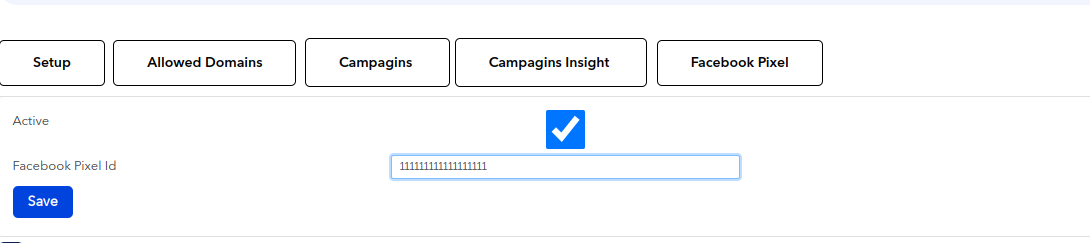
Go To pixel page
* Mark it as active
* Add your Facebook pixel code
after saving your website can grab events and send it back to feed your facebook pixel with proper data.
# Integrate ConvertedIn Pixel using GTM
if you don't have a GTM already setup you can use
## Installation
First include the sdk in your website in the last record of the \ tag
````html
```js
```
````
Then before the close tag of \
````markup
```js
```
````
### Send tracking events
All events will be sent through GTM data layer object as shown in the below table.
### Already Got GTM installed
Ask the team for the latest export GTM json including ( Folders, Tags, Varibles, Triggers).
Then continue with your datalayer firing.
### Identify Customer
After login, you can assign your customer id in the local storage with a key called `ci_cid`\
\
to ensure the data integrity with the customer journey in your website.
# Shopify Integration for Initiate checkout Event
Accourding to Shopify restriction on checkout page you can configure the \`Initiate checkout\` event on your shopify store.
Follow these steps to add the Convertedin pixel checkout event
* first go to **Themes** on the **Online Store** tab on the sidebar
* then select the edit the theme.liquid file and the initialization code of the pixel
* Add the InitiateCheckout Event on click at checkout button
* You should add "your\_pixel\_id" with the pixel id in the setting tab in Convertedin dashboard
```javascript
{% if request.page_type == 'cart' %}
{% endif %}
```
# Getting Started
Integrate with Convertedin DSP.
###
* create IFrame in your website with src set to `https://app-flyerz.converted.in/?token=x`
The token refereed to your portal config, please ask for that.
If you need to use copy through your iframe please add `allow="clipboard-read; clipboard-write"`
## Web-SDK
You can choose your preferred country and language.
Then register with your mobile number
Enter your otp you got on your phone
Writing your name in the first screen
You can navigate into wallet
or homepage
or calling the support
now link you facebook account to start making ads